Beta Setup¶
The beta deployment is beta.tonguetoquill.app. To drive it from an AI platform, add its MCP endpoint as a custom connector:
Claude¶
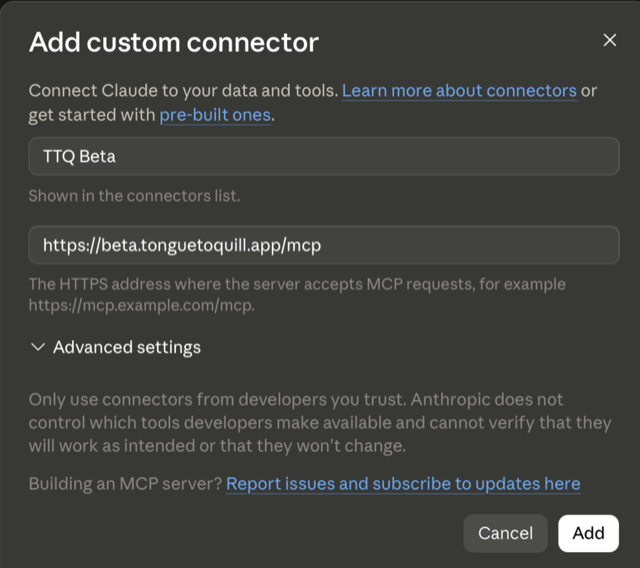
- Go to Settings → Connectors.
- Click Add → Add custom connector.
- Fill the first two fields, ignore Advanced settings, and click Add.
| Field | Value |
|---|---|
| Name | TTQ Beta — the label in your connectors list; any name works |
| URL | https://beta.tonguetoquill.app/mcp |
ChatGPT¶
- Turn on Developer Mode — Settings → Security → Developer mode.
- Go to chatgpt.com/plugins.
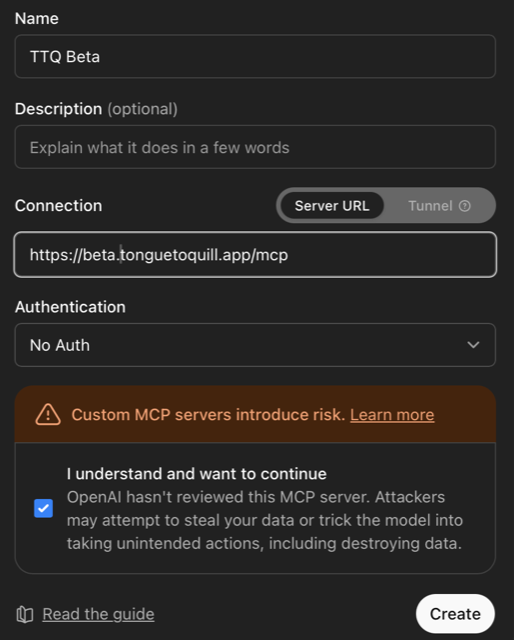
- Fill Name, Connection, and Authentication, tick the custom-server acknowledgement, and click Create. Description is optional.
| Field | Value |
|---|---|
| Name | TTQ Beta |
| Connection | Server URL (not Tunnel), https://beta.tonguetoquill.app/mcp |
| Authentication | No Auth |
Local agent¶
Most coding harnesses configure themselves. Tell yours:
Connect https://beta.tonguetoquill.app/mcp MCP server and write a test memo
If it doesn't connect¶
- The URL ends in
/mcp, and the host isbeta.tonguetoquill.app— the production host is a separate deployment with its own accounts. - Connector works but claim fails with "This account doesn't have access" — the address you signed in with isn't on the invite list. Ask whoever invited you to add it.
- A connector that lists tools but produces nothing usable is usually a validation failure, not a connection failure:
create_documentreturns the offending field as plain text. See Troubleshooting § The MCP connector isn't responding.